
Installation
This page explains the full DFCine installation, first launch, and login process. You can complete setup and login in one place.
Step 1: Download the Startup Package
Download the DFCine one-click startup package based on your service region:
- China region download address:
dfcine.digitfold.com - International region download address:
dfcine.com
It is recommended to always download the latest version from the official source and keep the original compressed package until the first successful launch.
Step 2: Extract and Launch the Software
Extract the downloaded compressed file to any location on your computer. An English directory path is recommended for easier maintenance and better compatibility.
After extraction, open the folder and double-click DFCine.exe to start the software.
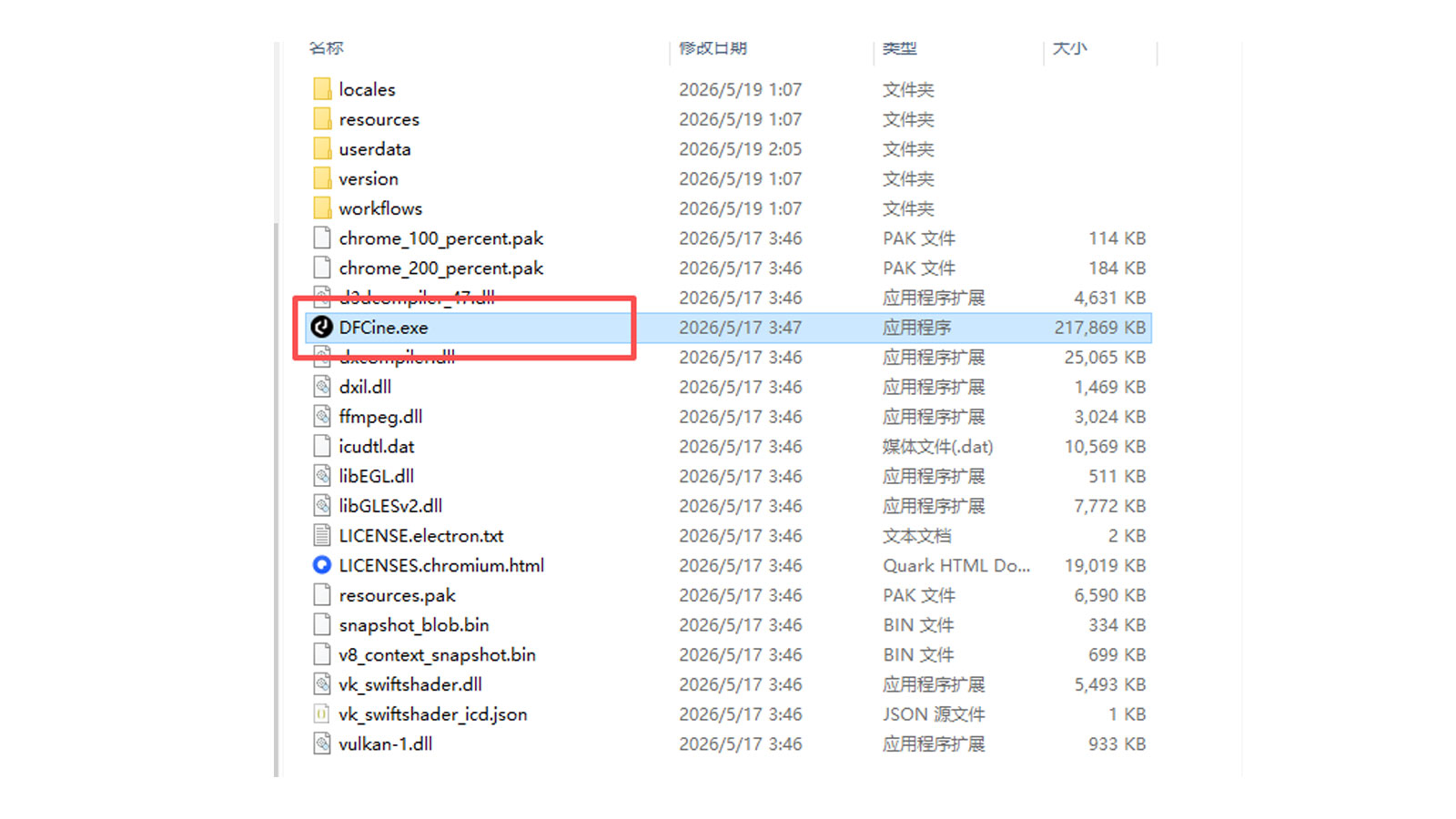
It is recommended to place the software in an easy-to-access location and avoid restricted directories.
Step 3: Enter the License Code to Sign In
After the first launch, the software will open the sign-in page. Go to the download address to obtain your login license code, then enter it into the license code field on the login screen.
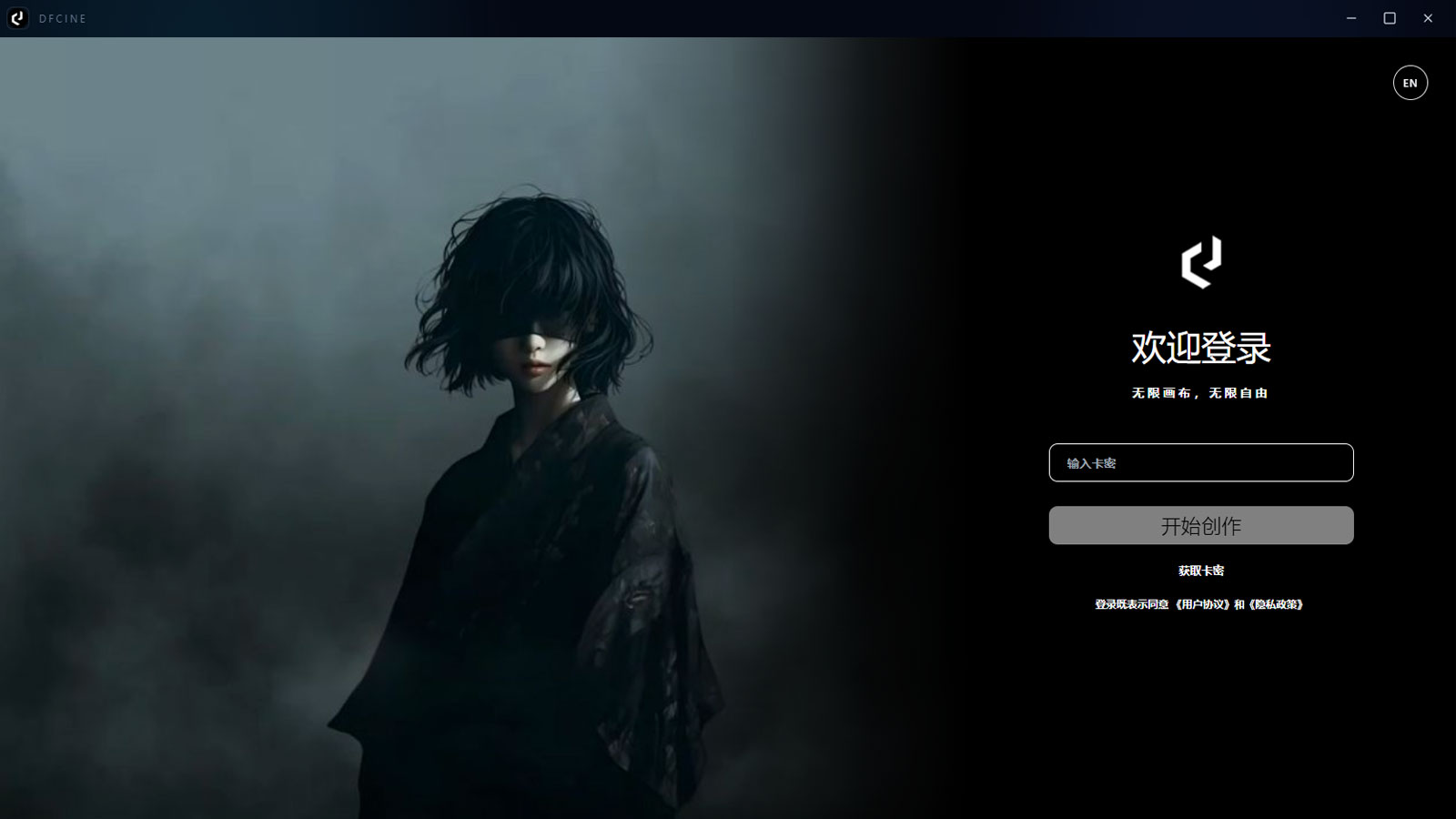
Make sure the code is entered completely and correctly, and keep the network connection available.
Step 4: Enter the Project Page
After entering a valid license code, click sign in. Once login succeeds, you will see the DFCine project page:
- The banner area at the top displays official notices, update information, and event messages
- The project management area below is used to view, create, and manage your projects
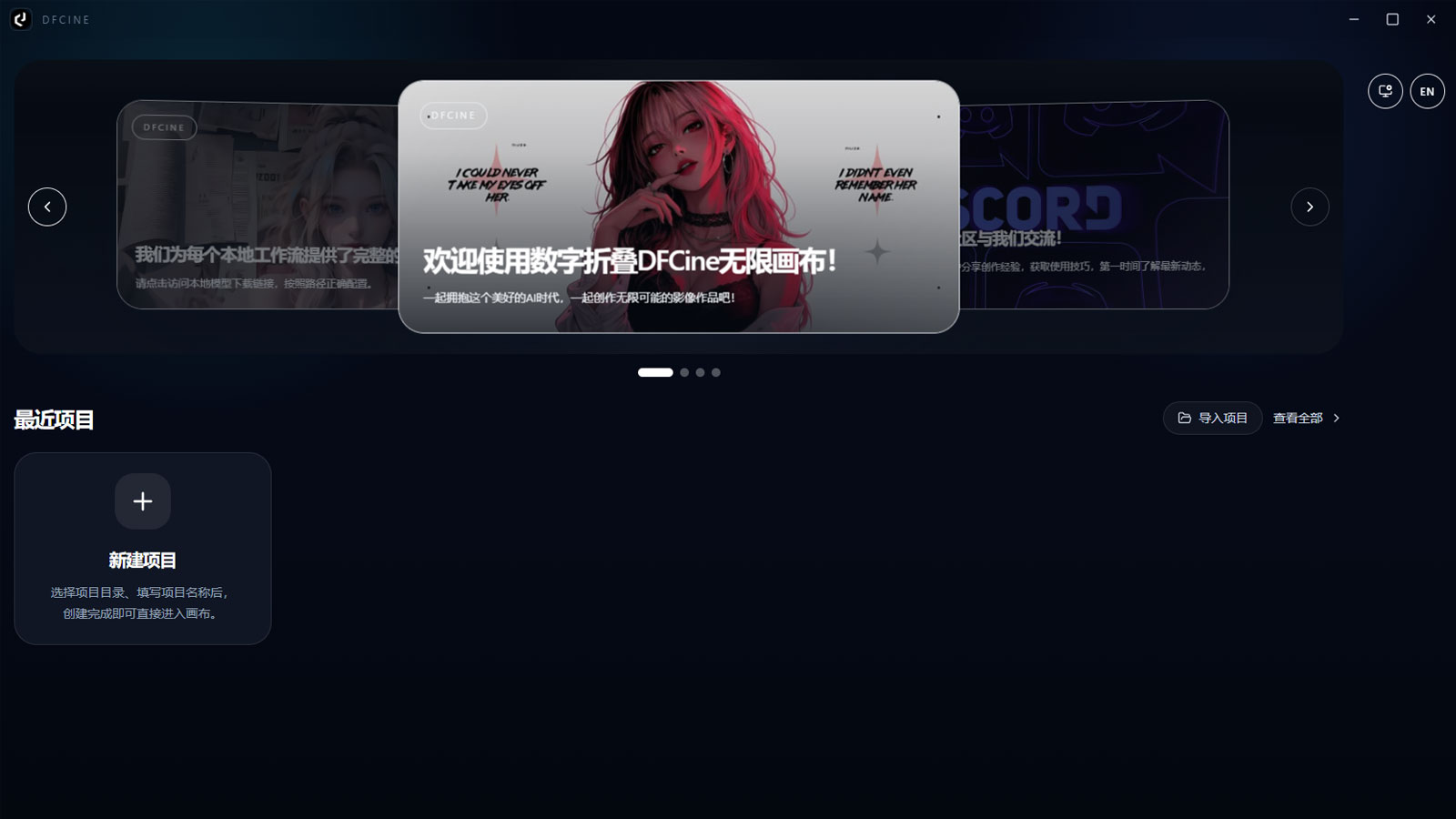
When you successfully enter the project page, the installation and login process is complete.