
ComfyUI Setup
This page explains how to install the DIGITFOLD ComfyUI package and complete the ComfyUI launch configuration inside the DFCine canvas.
Step 1: Get the DIGITFOLD ComfyUI Package
First, go to the software download area and find the DIGITFOLD ComfyUI package provided by us.
We strongly recommend using the DIGITFOLD package because it already includes the commonly used workflow environment and plugins, and it is designed to match the DFCine canvas well. This saves you the trouble of adapting environments, plugins, and dependencies on your own.
Step 2: Install ComfyUI with the Package Guide
Follow the installation guide included with the package to install ComfyUI. Before installation, make sure to check and update your GPU CUDA driver according to the guide so that ComfyUI can run normally in later work.
The DIGITFOLD ComfyUI package is shared free of charge, and future updates will also try to stay in sync with official ComfyUI updates in a timely manner.
Step 3: Configure the Launch Script in DFCine
After ComfyUI is installed, open the canvas page and find the settings button in the top-right corner.
In the ComfyUI settings panel, click "Browse Script" and manually choose your ComfyUI launch script. We provide two launch scripts, and you can choose one based on your VRAM configuration:
- VRAM greater than or equal to 16 GB: choose
run_nvidia_no_dynamic_vram.bat - VRAM less than or equal to 16 GB: choose
run_nvdia_gpu.bat
After making your selection, remember to click "Save ComfyUI Settings".
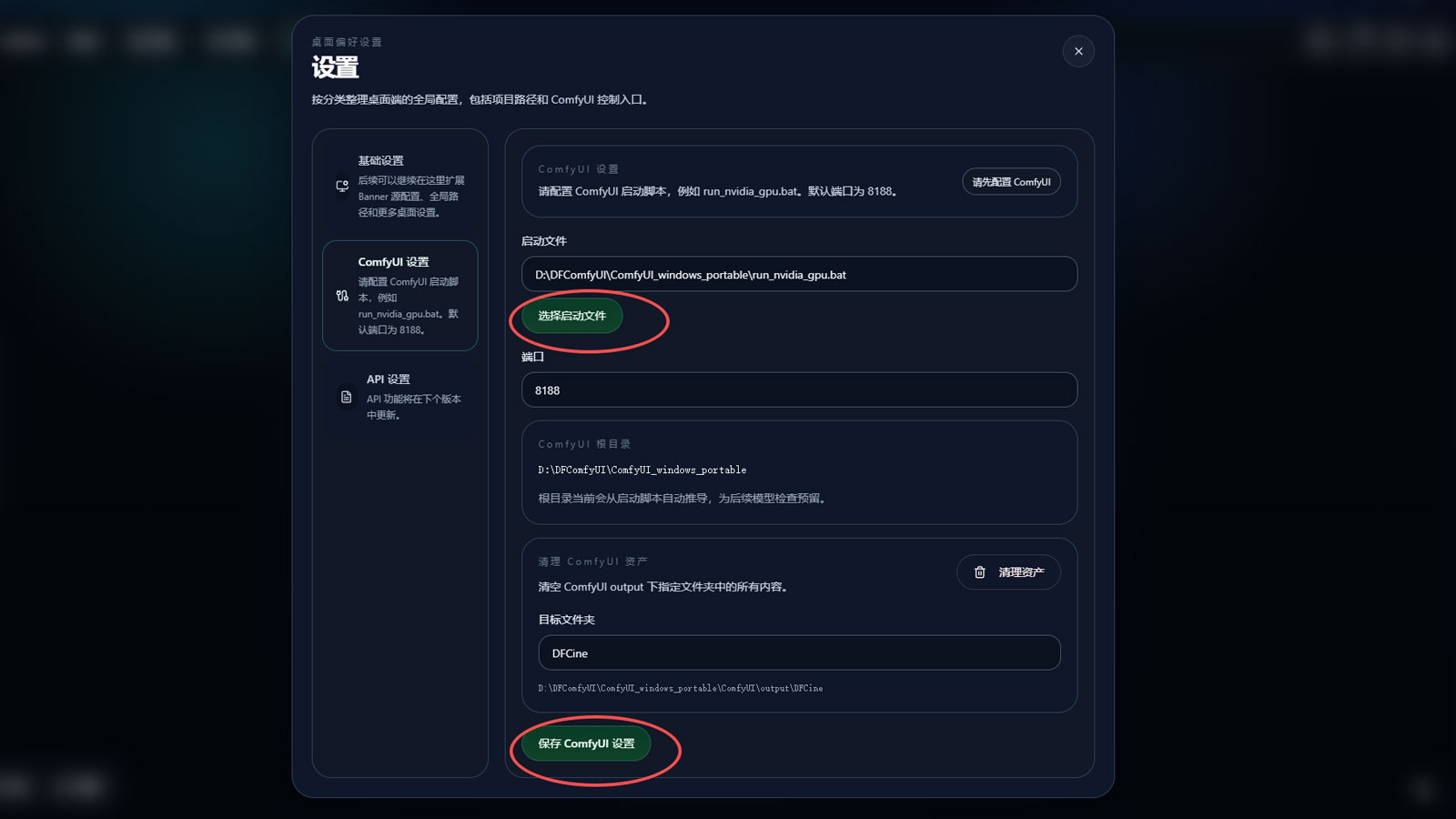
Make sure the selected script matches your GPU configuration, otherwise it may affect ComfyUI startup stability.
Step 4: Start ComfyUI and Check Its Status
After configuration is complete, click the C icon button in the top-right corner of the canvas to start ComfyUI.
A status color will appear above the C button:
- Red: not started
- Yellow: starting
- Green: started successfully
During local workflow execution, the system checks the ComfyUI startup status first. If ComfyUI is not running normally, the workflow will stop, so make sure ComfyUI is configured correctly.
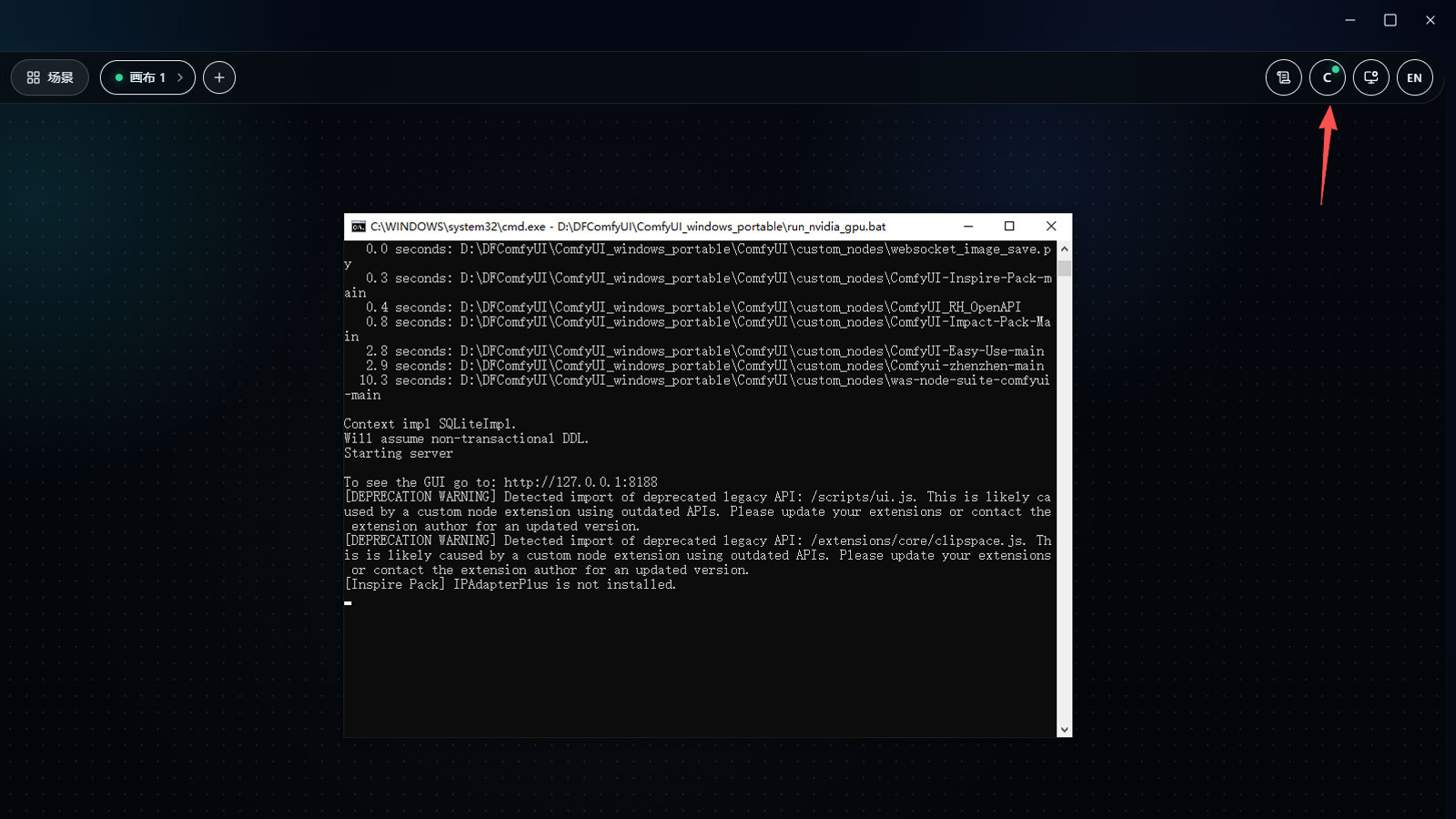
It is recommended to confirm that the status has turned green before running a workflow.
Special Note
When ComfyUI is running normally, a launch window will appear and continuously record the ComfyUI runtime logs. Please do not close this window.
At the same time, a browser page for the ComfyUI interface may open automatically. If you see workflow-related content there, you do not need to worry about it, because the workflow used by the DFCine canvas is stored inside the canvas itself. In this setup, ComfyUI mainly acts as the execution engine.