
Canvas Assistant
The canvas assistant is the AI assistant built into DFCine. It answers questions about using DFCine, reads the current canvas and node images, and can create, connect, and change nodes or run workflows when you ask it to.
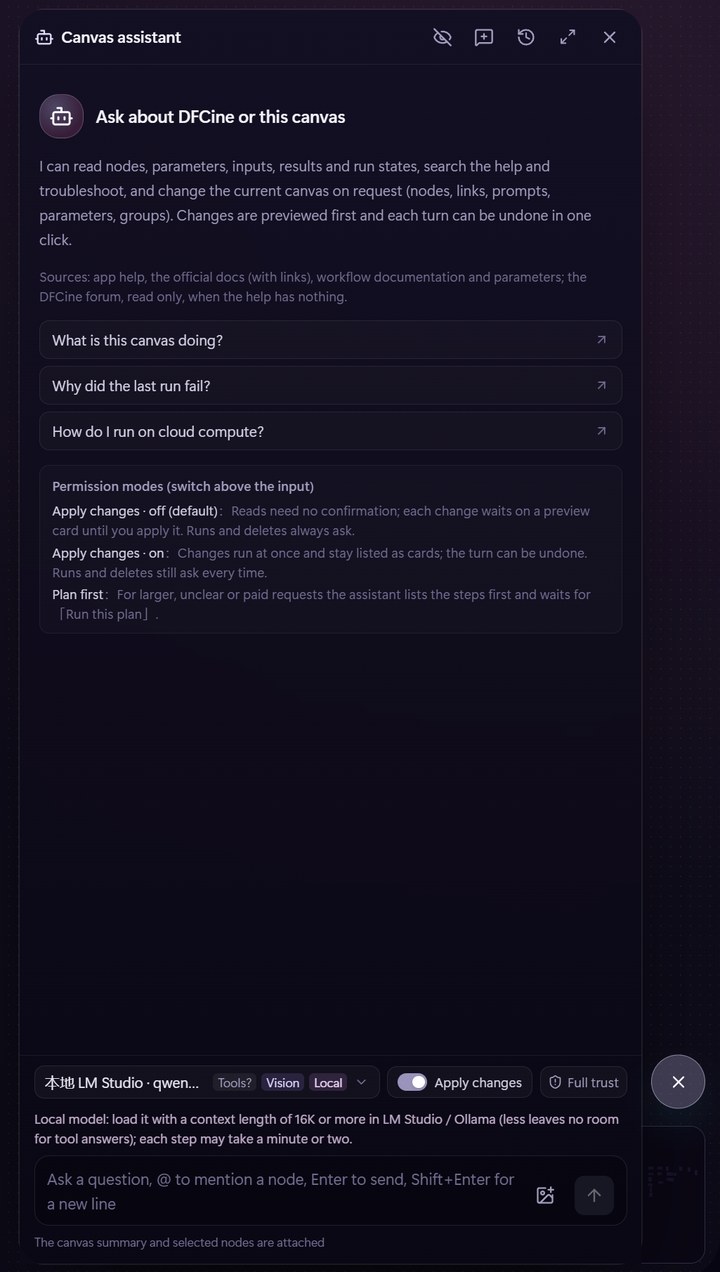
Screenshot from DFCine 0.3.2.
Open the assistant
Click the assistant button above the node map in the lower-right corner of the canvas, or press Ctrl + Shift + A (⌘ + Shift + A on macOS). The buttons at the top of the panel are, from left to right: hide thinking and tool calls, new chat, chat history, expand panel, and close.
Choose a model
Before the first chat, pick the default model for Canvas assistant under Settings → Model purposes. You can switch to another model for a single chat from the picker above the input box.
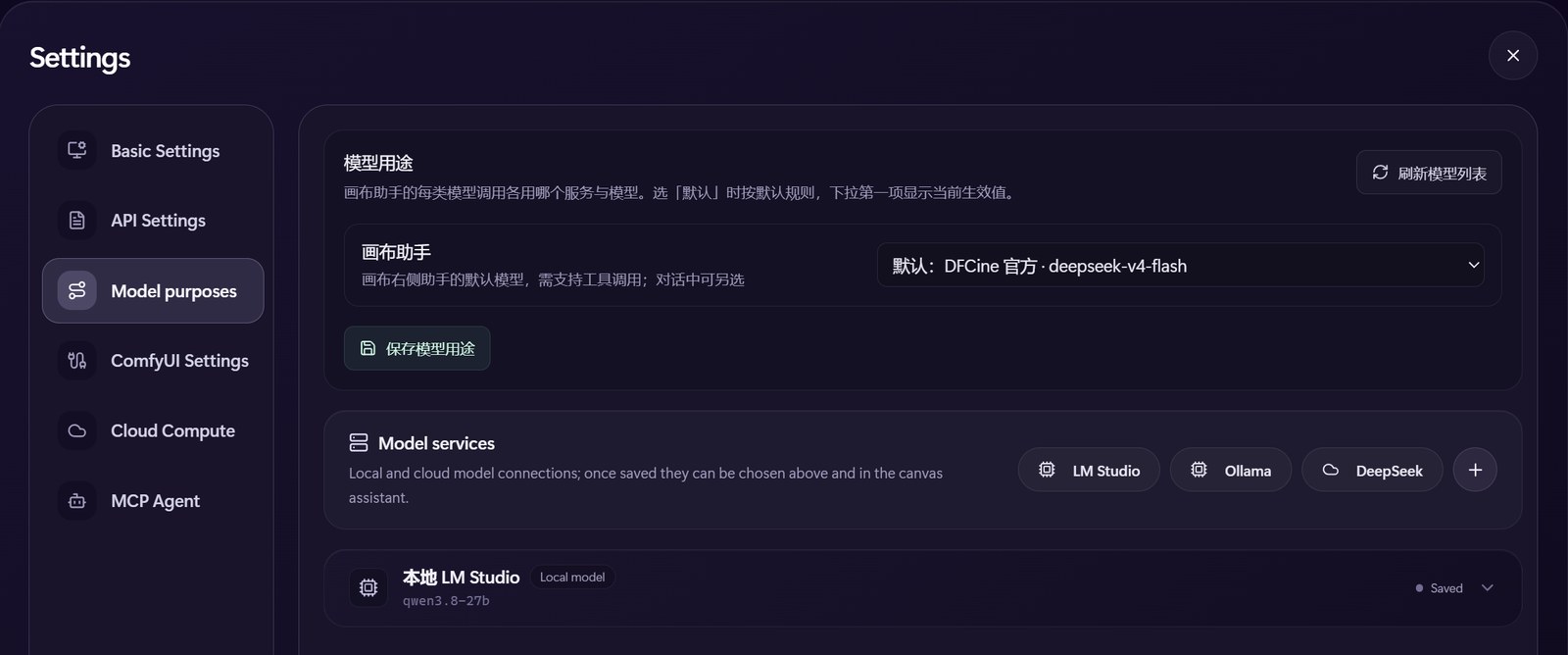
| Model source | What to set up |
|---|---|
| DFCine Official API | Enter the DFCine Official API key under Settings → API Settings. Usage is charged to your balance. See DFCine API Configuration. |
| DFCine Extended API | Enter the DF Think key of the Extended API under API Settings. |
| OpenAI-compatible APIs, DeepSeek | Add the service under Model purposes → Model services with its address and key. |
| Local models (LM Studio, Ollama) | Add them under Model services. Load the model with a context length of 16K or more, or tool answers will not fit. Each step may take a minute or two. |
The tags after a model name show whether it can call tools and view images. To change the canvas, the assistant needs a model that can call tools.
What it can do
- Answer questions about DFCine, with links to the official docs. When the help has nothing, it searches the DFCine forum (read only).
- Explain the canvas: it reads nodes, parameters, inputs, results, and run states, so it can tell you what a canvas does or why the last run failed.
- Change the canvas: create nodes, connect them, write prompts and parameters, and organize groups. Type
@in the input to point at a node. The canvas summary and the selected nodes are attached to each message. - Images: attach an image for the assistant to look at, or ask it to put the attached image on the canvas.
- Run workflows: before a run, it shows the compute target and estimated cost and waits for your confirmation.
Confirmations
There are two switches above the input box:
- Apply changes (off by default): when off, each change appears as a preview card first and runs only after you click Apply. When on, changes take effect immediately and stay listed as cards in the chat.
- Full trust: available only when Apply changes is on. You confirm once more before it turns on, and it applies only to the current chat. Runs, deletes, and workflow switches then no longer ask each time. If the chat has read forum content, per-step confirmation comes back automatically.
These rules always apply:
- Without full trust, runs, deletes, and workflow switches ask for confirmation every time.
- For larger, unclear, or paid requests, the assistant lists the steps first and waits until you click Run this plan.
- Each turn of changes can be undone in one click.
- License data, API keys, workflow internals, and local file paths are never sent to the model.
Connect an external agent (MCP)
Besides the built-in assistant, DFCine supports external agents via MCP. A connected agent can read the active canvas, create nodes, set parameters, and submit tasks when workflow permissions allow. Open Settings → MCP Agent, then follow the setup guide for your client: