Alibaba Bailian API Configuration
This guide explains how to create an Alibaba Bailian API key, configure it in DFCine, and use API-based workflows in the canvas.
Step 1: Sign in to Alibaba Bailian
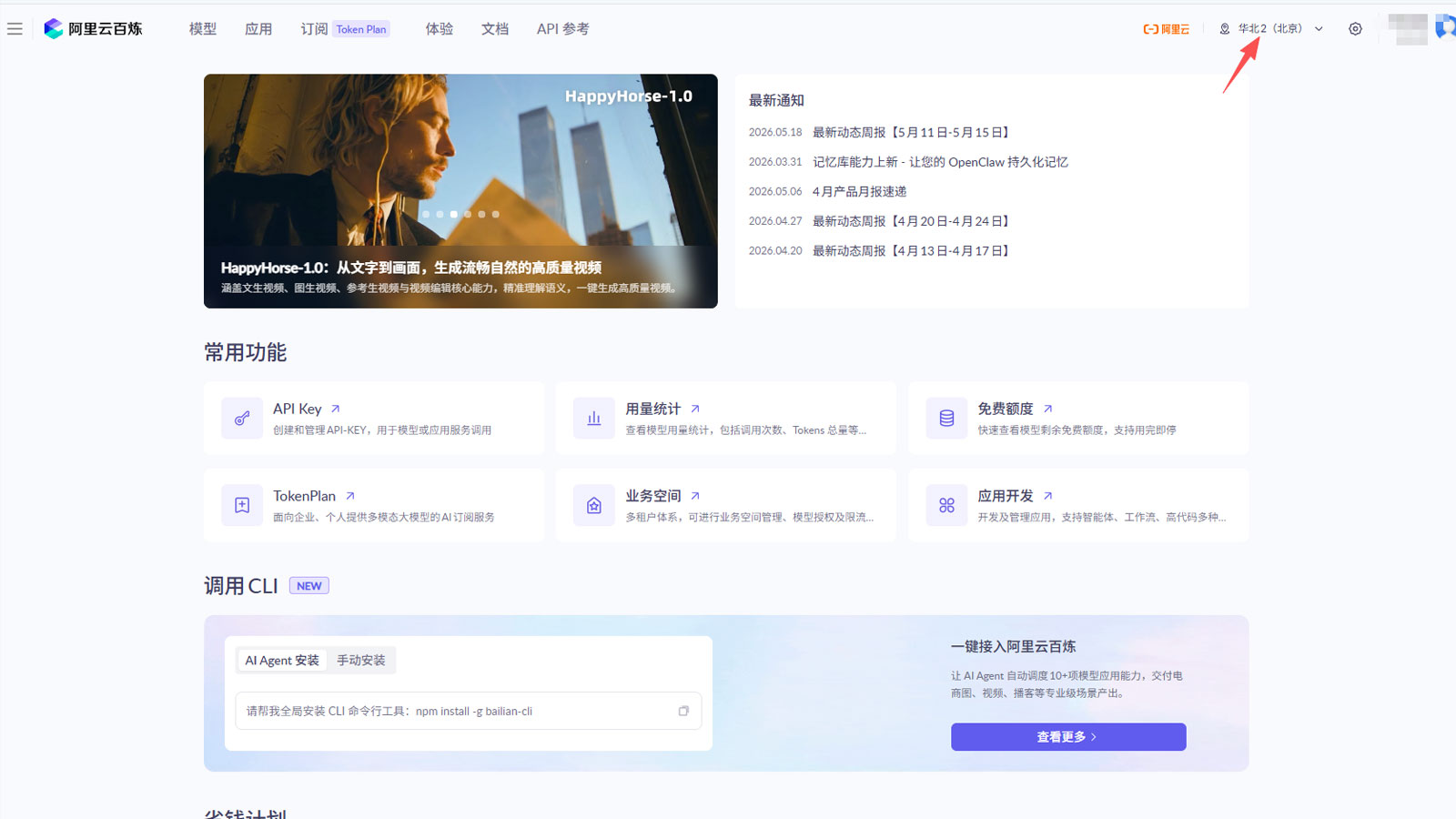
Open Alibaba Bailian Console and sign in with your Alibaba Cloud account. If you do not have an account yet, register one first.
Step 2: Create an API key
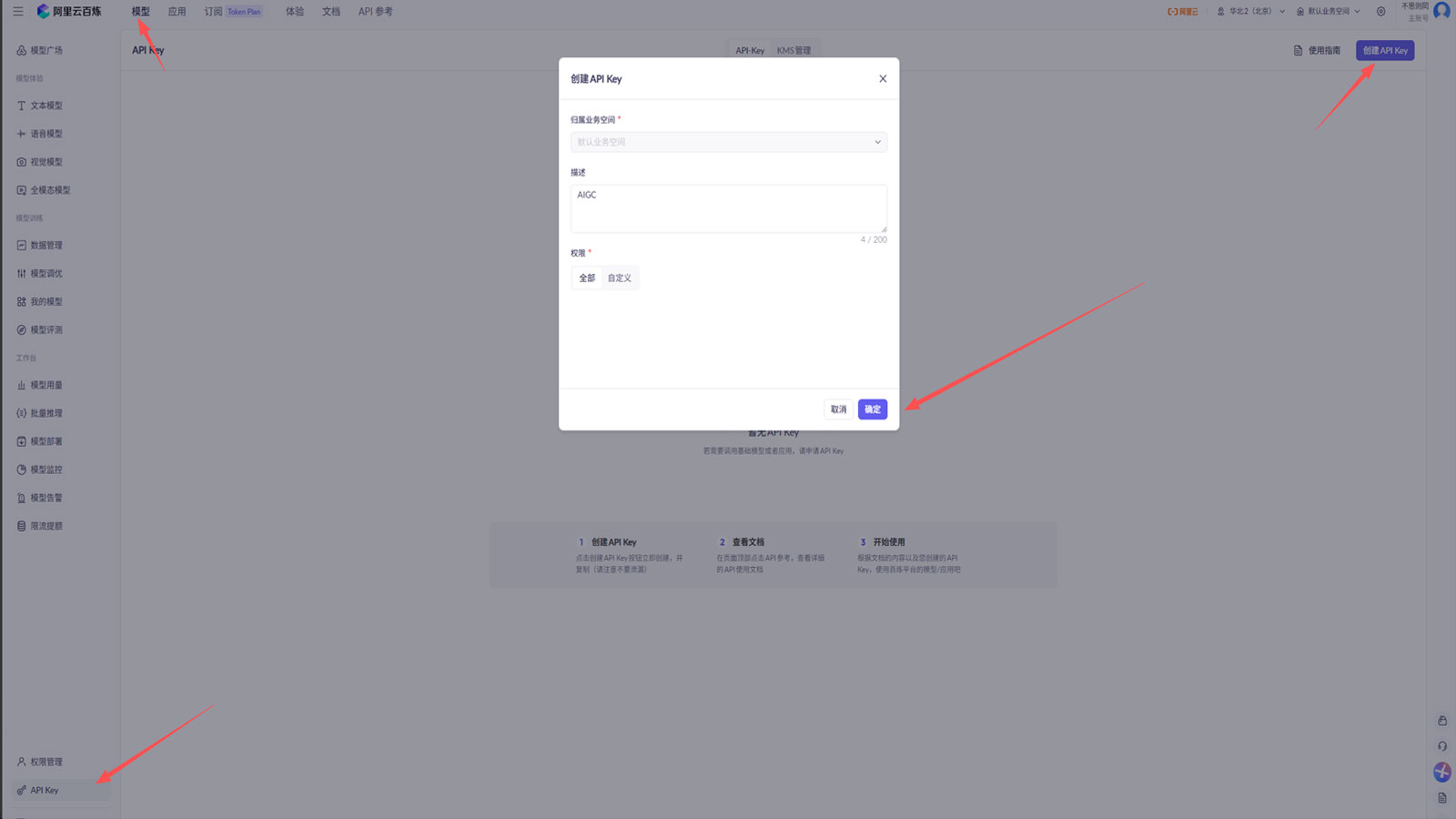
After signing in, confirm your current region. Open the model menu, click API KEY in the lower-left area, and then create a new API key.
Step 3: Save the API key in DFCine
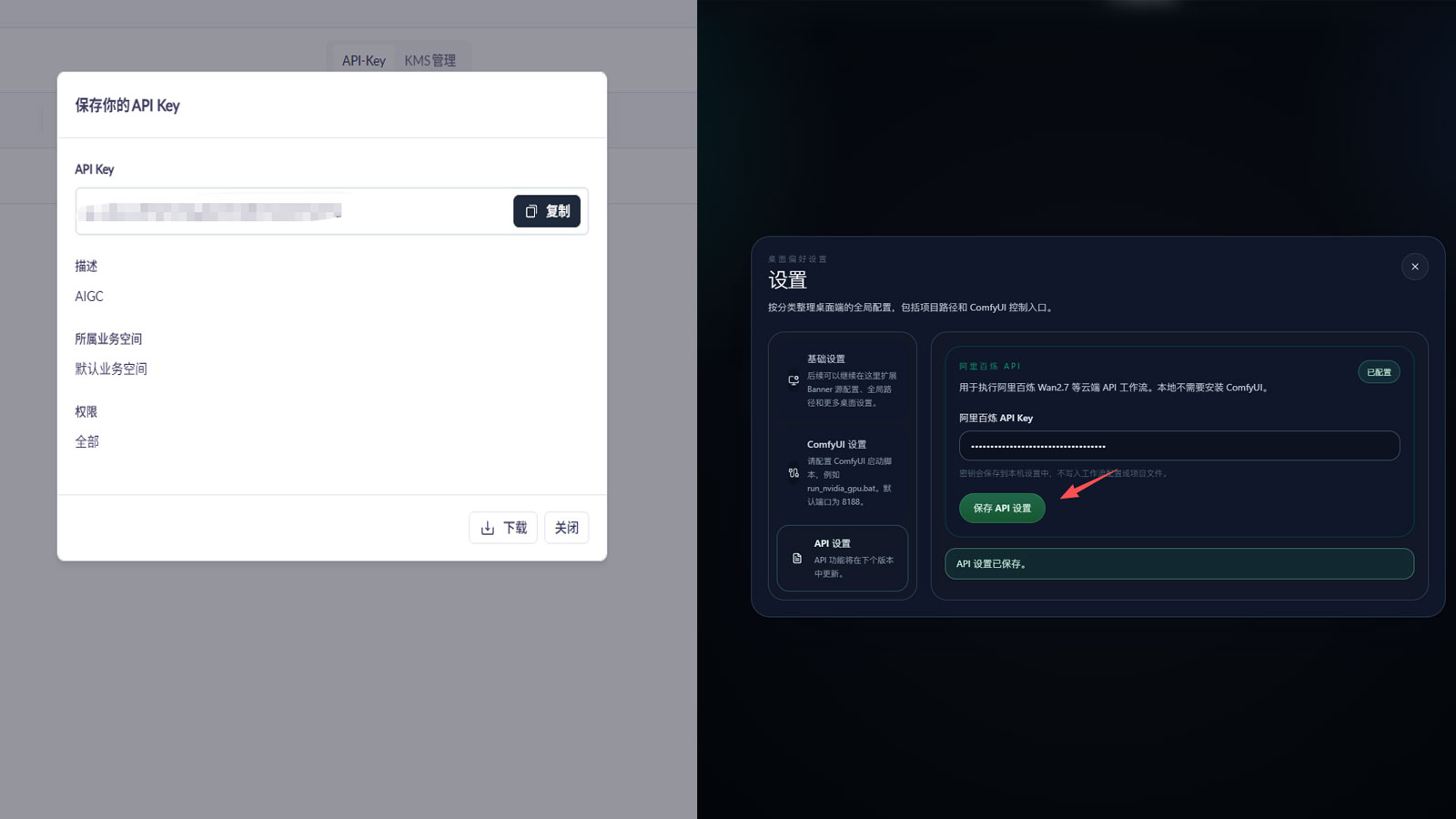
Open DFCine settings and find the API settings section. Paste your API key into the Alibaba Bailian API field, then click Save API Settings.
Step 4: Run an API workflow on the canvas
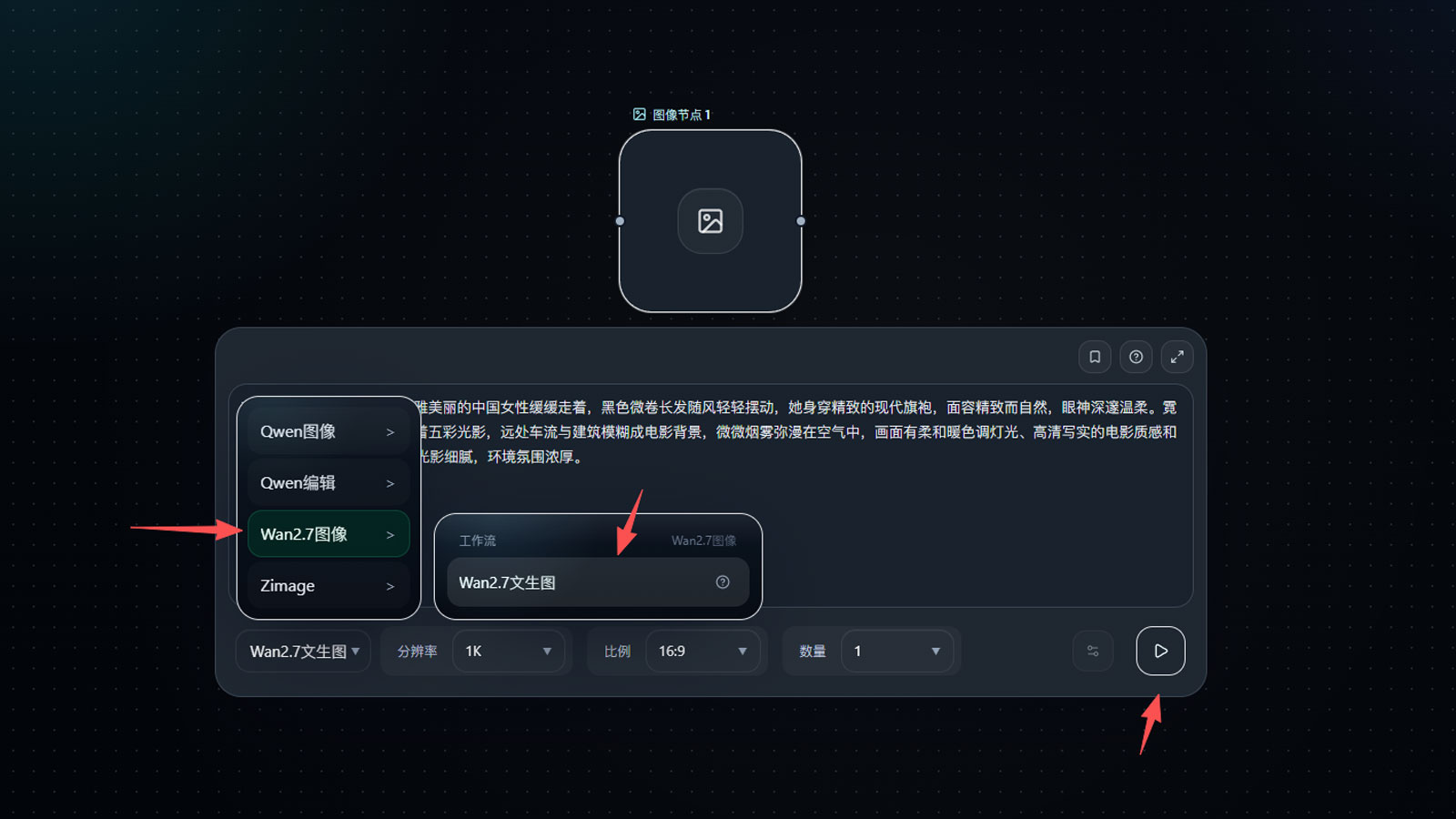
Create an image node in the canvas and select the Wan2.7 Text-to-Image Workflow from the lower-left area. If the model category has a dark green background, it means the model is an API model and requires an API key.
Enter your prompt and related parameters in the workflow settings panel, then click Execute to submit the task to Alibaba Bailian.
Step 5: Review results and errors
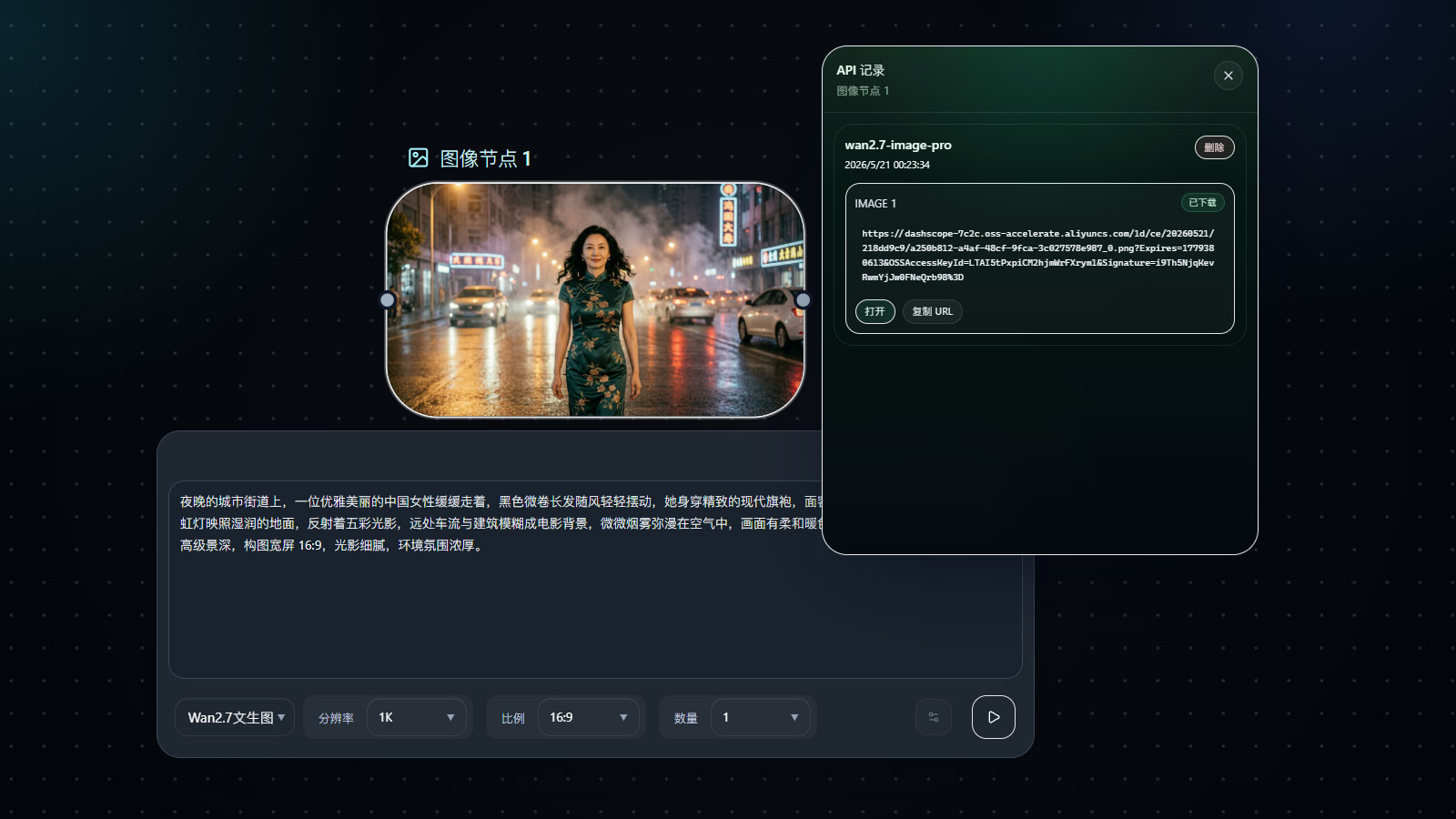
When the workflow finishes, the result is returned directly to the result area. If any issue occurs, the error message is also returned to the node display.
You can also right-click the image to view the API return URL history. The history can also be used to download the result to your computer.
Step 6: Check usage and keep the key safe
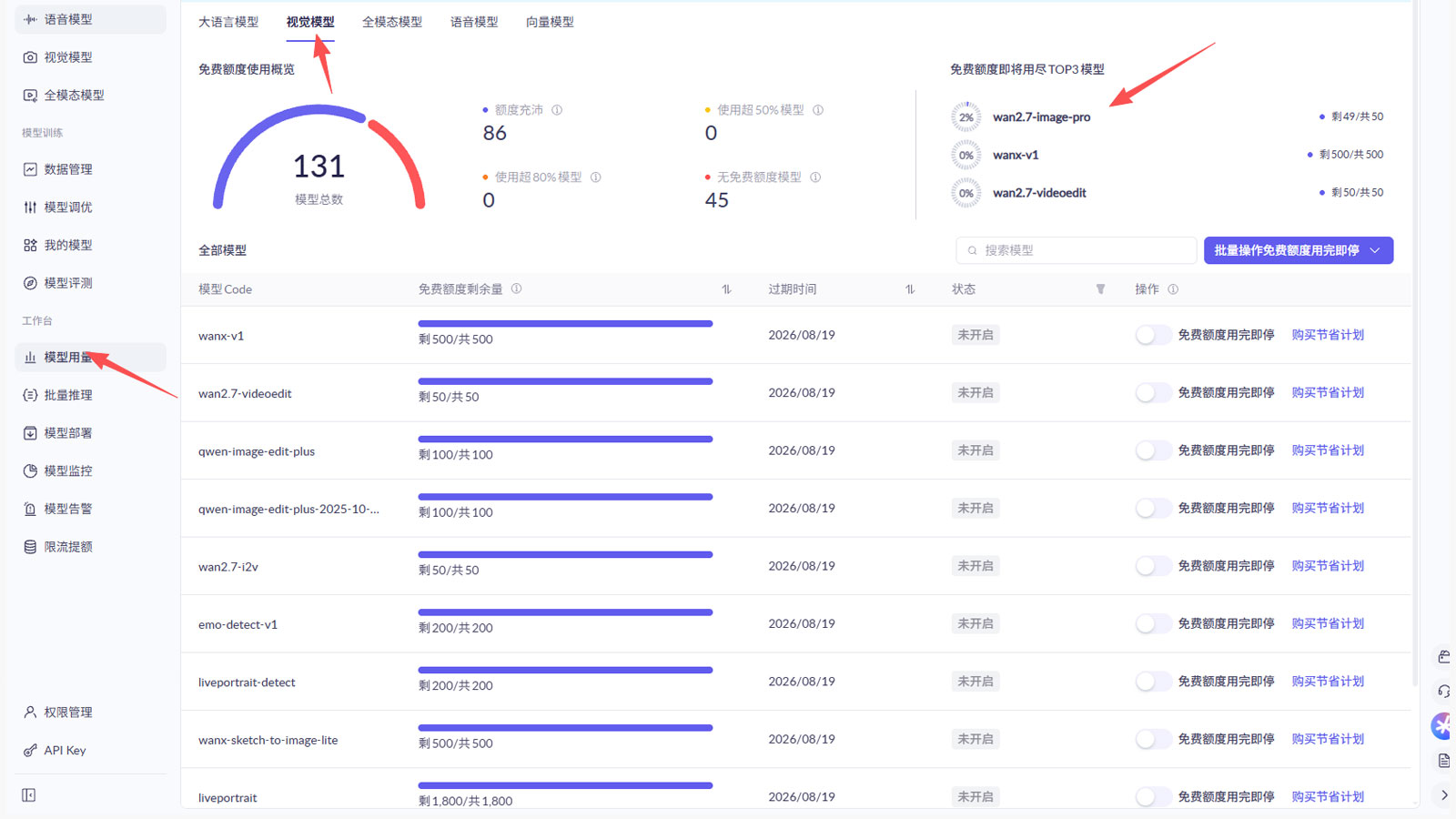
In the Alibaba Bailian console, you can check model usage to review the available quota for each model. Every account includes a limited free quota. After the free quota is used, you can purchase additional token packages to continue.
All Alibaba Bailian workflows use the same API key, so keep your API key safe.