
AutoDL API Configuration
This guide explains how to configure an AutoDL API token in DFCine and use AutoDL API workflows on the canvas to generate video or speech.
This guide covers AutoDL API workflows, which require only an API token and do not require you to create a GPU instance. This is different from connecting a cloud ComfyUI instance as described in the AutoDL Cloud GPU Deployment guide.
Step 1: Open AutoDL token management
On the DFCine canvas, open Settings > API Settings, find AutoDL API, and click Manage Tokens.
You can also open AutoDL Token Management directly. If you do not have an AutoDL account, register and sign in first. API workflows incur usage charges, so add a small usable balance before running a real task. Current prices and final charges are determined by the AutoDL console.
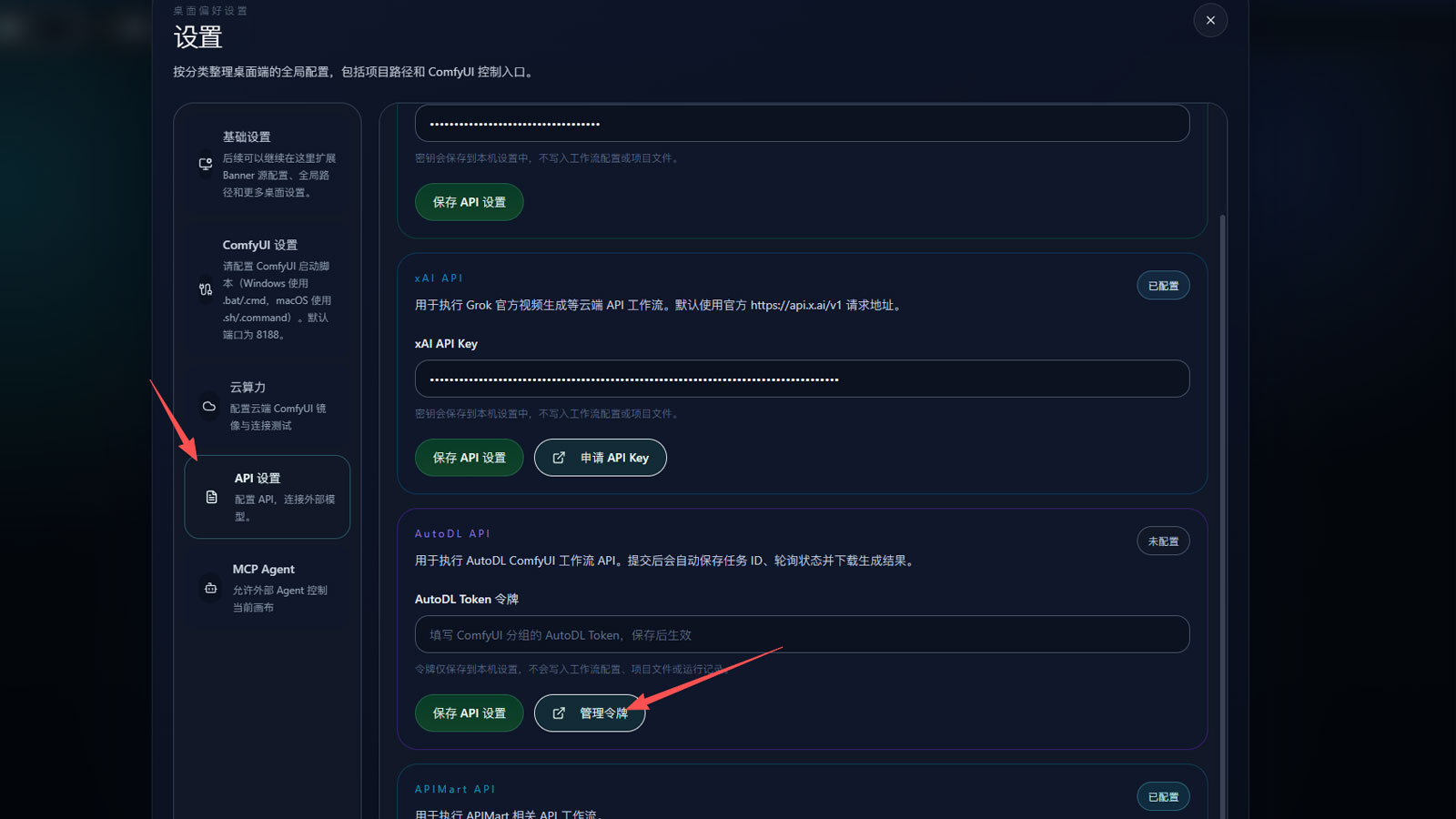
Step 2: Create a ComfyUI token
- Click Create New Token on the token management page.
- Enter a recognizable token name.
- Select ComfyUI as the token group.
- Set a spending limit and expiration time if needed, then click Confirm.
The token must belong to the ComfyUI group. Tokens from other groups cannot be used with the AutoDL ComfyUI workflow APIs described here.
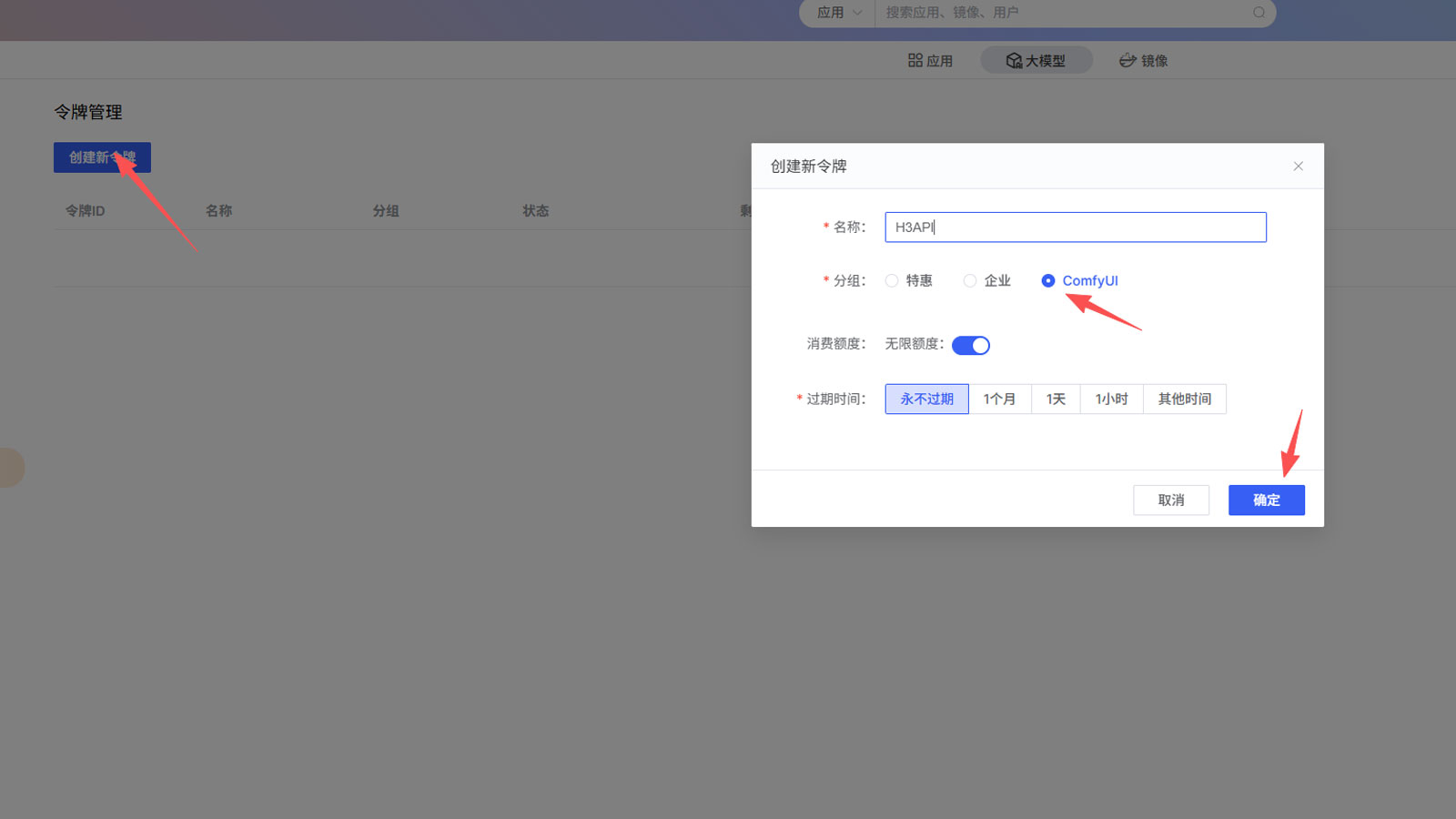
Step 3: Copy the token and save it in DFCine
Copy the new key from the AutoDL token list. Return to Settings > API Settings > AutoDL API in DFCine, paste it into AutoDL Token, and click Save API Settings.
After saving, the AutoDL API section shows that it is configured. The token is stored only in local application settings and is not written to workflow configurations, project files, or run records.
Step 4: Build and run an AutoDL API workflow
- Return to the canvas and create the required node type, such as a video or audio node.
- Open the node workflow list and select the API category.
- Choose a workflow whose name starts with AutoDL.
- Connect images or audio according to the workflow descriptions below, enter the prompt, and set the parameters.
- Click the node's Run button to submit the task.
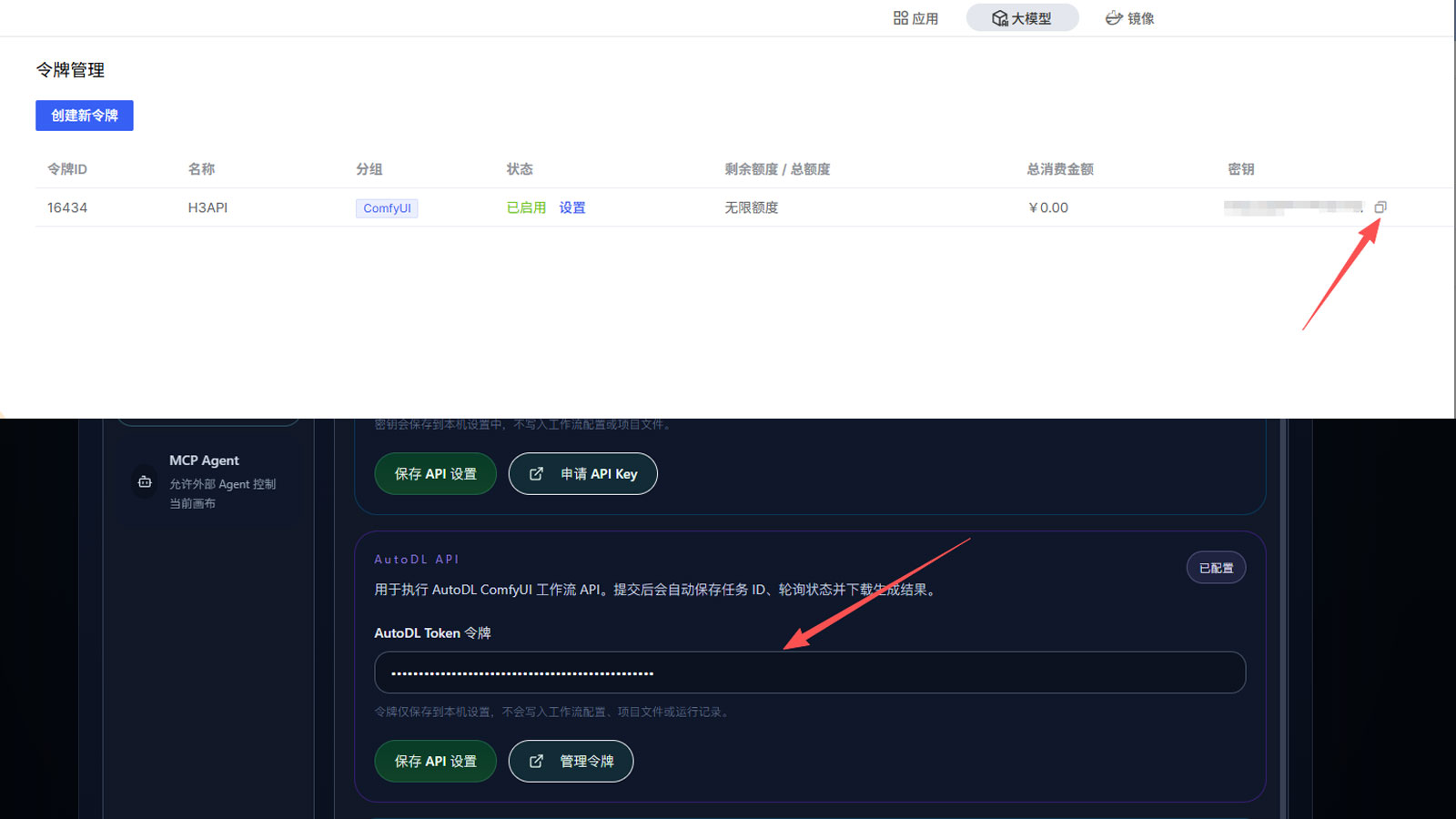
After submission, DFCine saves the task ID, polls its status, and downloads the generated result when the task succeeds. You can also open Call Logs > ComfyUI Workflows in the AutoDL console to inspect task status, queue time, and inference time. Check token management or the dashboard for spending and remaining balance.
AutoDL API workflow guide
AutoDL H3 Text to Video
Generates a 1–15 second MiniMax H3 video from a text prompt.
- Connections: none.
- Required content: a video generation prompt.
- Common parameters: duration and resolution.
- Open the official workflow page
AutoDL H3 First/Last Frame Video
Generates a transition video between a required first frame and last frame, with a duration of 1–15 seconds.
- Connections: first image as the first frame and second image as the last frame; both are required.
- Required content: a prompt describing subject motion, camera movement, and the transition between the two frames.
- Common parameters: duration and resolution.
- Open the official workflow page
AutoDL H3 Image Audio Lip Sync
Generates an automatically lip-synced video from one portrait image and one reference audio file.
- Connections: image first and audio second; both are required.
- Prompt: not required.
- Common parameters: audio duration and resolution. Match the duration to the audio segment you want to use.
- Open the official workflow page
AutoDL H3 Multi-Image Reference
Uses up to nine reference images to control characters, products, scenes, clothing, or visual style. It generates 1–10 second videos with output up to 1080p.
- Connections: at least one and up to nine reference images.
- Required content: explain the purpose of each image and describe the subject, action, scene, and camera movement.
- Common parameters: duration, resolution, and seed.
- Open the official workflow page
AutoDL H3 Multi-Image 15s
Provides the same multi-image reference use case with a maximum duration of 15 seconds.
- Connections: at least one and up to nine reference images.
- Required content: a video generation prompt.
- Common parameters: 1–15 second duration, resolution, and seed.
- Open the official workflow page
AutoDL H3 Multi-Image Multi-Audio
Uses up to nine reference images and three reference audio files to generate a 1–10 second multimodal video.
- Optional connections: connect the media required by the task, up to nine images and three audio files.
- Connection order: images and audio may be interleaved. DFCine groups and numbers them by their actual media type.
- Required content: describe the role of each reference, visual content, action, camera movement, and audio-visual relationship.
- Common parameters: duration, resolution, and seed.
- Open the official workflow page
AutoDL H3 Multi-Image Multi-Audio 15s
Provides the same multi-image and multi-audio workflow with a maximum duration of 15 seconds.
- Optional connections: up to nine images and three audio files; image and audio connections may be interleaved.
- Required content: a multimodal video prompt with an event count and audio length suitable for the selected duration.
- Common parameters: 1–15 second duration, resolution, and seed.
- Open the official workflow page
AutoDL IndexTTS2
Generates WAV speech from a required voice reference and an optional emotion reference. It is suitable for voice-over, narration, and spoken content.
- Required content: the final text to speak, between 1 and 2,048 characters. Do not include directing notes or prompt labels.
- Connections: the first audio file must be the voice reference; the second may be an emotion reference.
- When using the second audio file: set Emotion Control Method to Use Emotion Reference.
- Common parameters: emotion control method, random emotion, and emotion strengths.
- Open the official workflow page
Troubleshooting
DFCine reports that no AutoDL token is configured
Return to Settings > API Settings > AutoDL API, paste the token again, and click Save API Settings. Confirm that the token belongs to the ComfyUI group.
The submission response does not contain a task ID
AutoDL usually returned an authentication, balance, or parameter error during submission. Check whether the token is valid, the account has a usable balance, and all required media is connected. Then inspect the corresponding request in AutoDL Call Logs.
How should multi-image and multi-audio inputs be ordered?
These workflows route inputs by their actual media type, so image and audio connections may alternate. Inputs of the same media type are still numbered in their own connection order.
Security reminders
- Never expose a complete token in screenshots, logs, project files, or chat messages.
- Set an appropriate spending limit and periodically review call logs and billing.
- If a token may have leaked, disable or delete it immediately in AutoDL Token Management and create a replacement.