
DFCine API Configuration
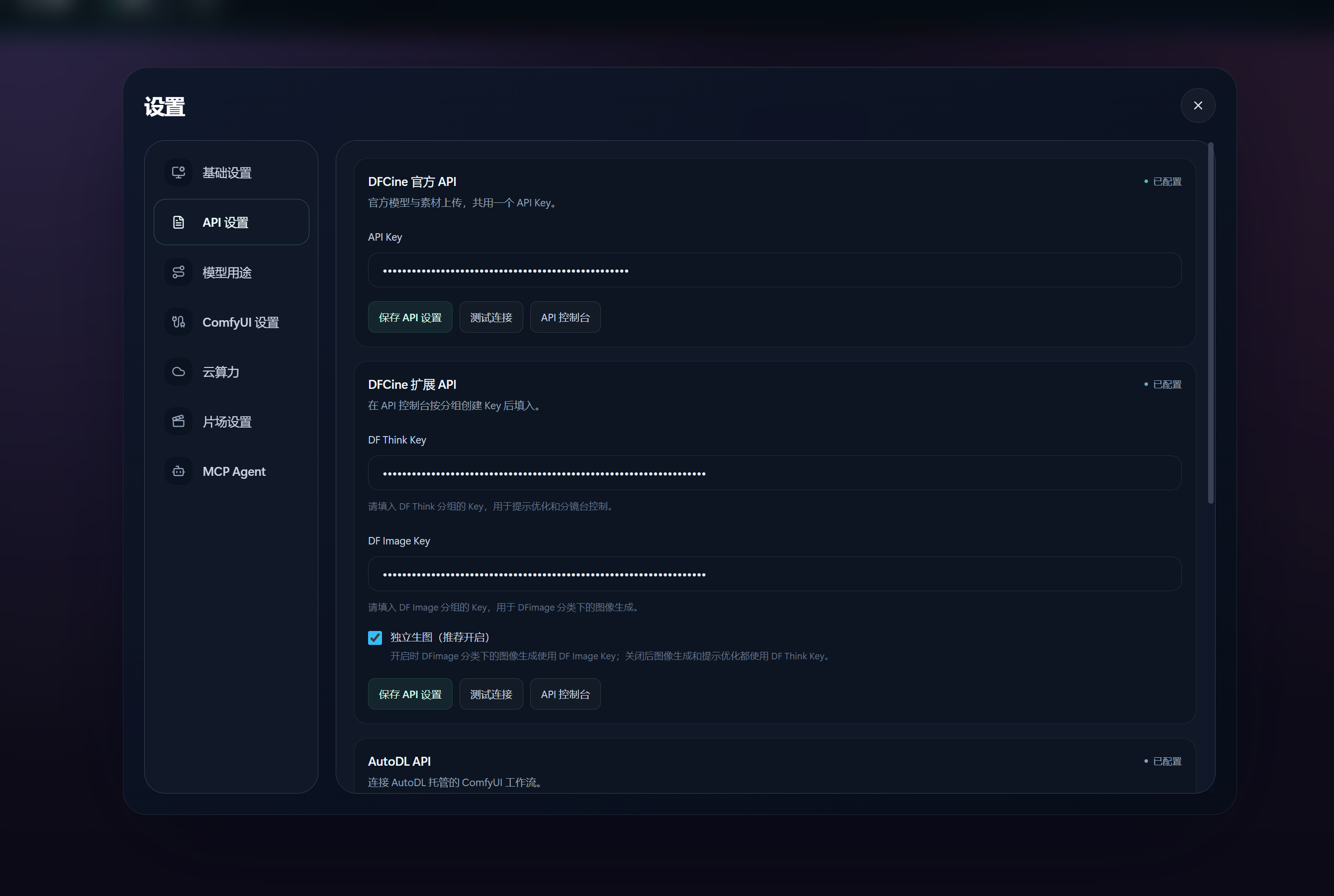
Check the workflow in the node's workflow picker, then open Settings → API Settings from the top right of the canvas. Each provider has its own credentials.
| Feature or workflow | Where to get credentials | Where to enter them |
|---|---|---|
| DFCine official models and media uploads, and the canvas assistant on DFCine official models | DFCine Official API console | DFCine Official API → API Key |
| Extended models for prompt optimization, or the canvas assistant on DFCine extended models | DF Think group in the DFCine Extended API console | DFCine Extended API → DF Think Key |
| Image workflows in the DFimage category | DF Image group in the same extended console | Enable Separate image key and enter the DF Image Key |
| Official Grok video workflow | xAI Console | xAI API. See Grok configuration |
| Alibaba Bailian, AutoDL API, or APIMart workflows | The provider's own console | Aliyun Bailian API, AutoDL API, or APIMart API. See Bailian and AutoDL API |
Save and test
- Create a key in the relevant console. For the Extended API, select the group that matches the key field. With Separate image key enabled, DFimage uses the DF Image Key. With it disabled, DFimage and extended-model prompt optimization both use the DF Think Key.
- Fill in the corresponding card and click Save API Settings. Both DFCine API cards offer Test Connection. For prompt optimization, select the model in the node's optimization panel.
- After a successful test, return to the canvas and select a workflow for that provider. If DFCine reports missing credentials, check the workflow provider, the settings card, and the extended key group. If the connection works but submission fails, check model permissions, available credits, and the node error.
Check API usage and billing with the provider. If you rent and run your own ComfyUI instance, follow Cloud Compute Setup to enter its service address.